Topics
A topic is a container for related conversations. It has a participant roster and can hold several independent message threads; every topic member can see and join each thread.
Use a topic when a team needs several parallel workstreams around one project, investigation, or incident. A topic is not a group chat: a group chat is one shared conversation, while a topic groups multiple conversations (see Group chats).
Topic vs. other conversation models
| 1:1 conversation | Group chat | Topic | |
|---|---|---|---|
| Structure | One message thread | One message thread | A container for one or more conversations |
| Participants | You and the agent | A roster on one conversation | A roster shared by all conversations in the topic |
| Sidebar | One standalone row | One standalone row | A parent row with conversations nested below it |
| Sandbox | Your personal sandbox | Conversation-scoped shared sandbox | Topic-scoped shared sandbox |
Creating a topic
There are three ways a topic comes into being. However it is created, the creator becomes its owner.
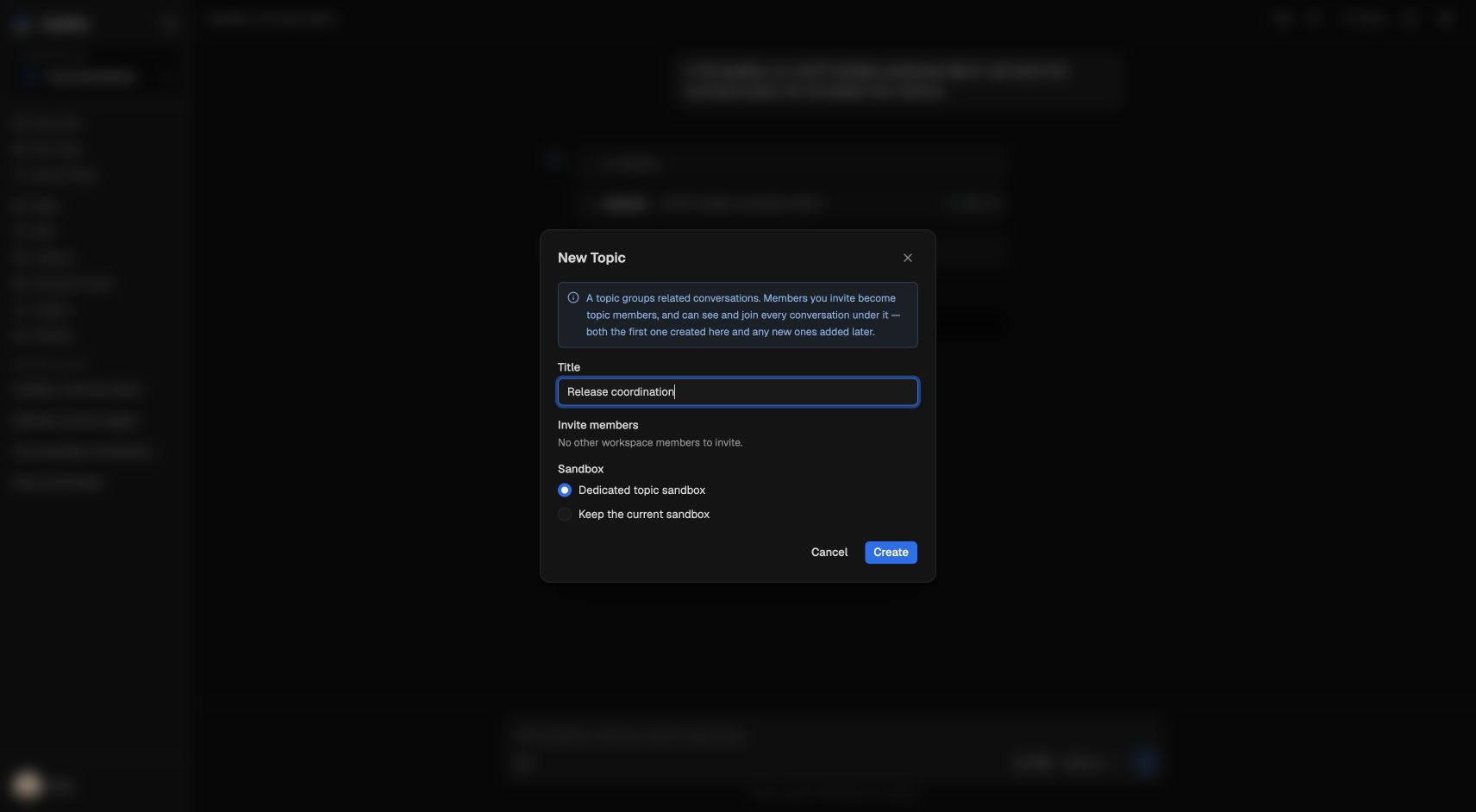
New Topic
Click New Topic in the sidebar. Give it a title, invite workspace members, and choose the sandbox mode. CubePlex creates the topic with a first conversation and opens it.
Upgrade an existing conversation
Use Upgrade to topic from a 1:1 conversation header when the work needs more than one thread. The existing conversation becomes the first conversation under a new topic, and you become its owner.
You cannot upgrade a conversation that is already part of a topic, or one wired to an IM bot, scheduled task, or event trigger.
From an IM bot
An IM connector in topic routing mode creates a CubePlex topic when the first message arrives. The IM channel and platform are stored as topic metadata. The topic title prefers the platform channel or group name when the connector can resolve one; otherwise it uses a snippet of the first user message (for example Slack thread @-mentions, which do not supply a group title). Empty titles still fall back to a localized "New Group Chat" label in the sidebar. In shared routing mode, the connector instead uses one standalone group conversation; it does not create a topic. See IM Connectors and Group chats.
The IM runner only drives topics that originated from IM. A topic created in the web app cannot currently be answered from an IM channel.
Participants and roles
Every participant has one of two roles:
- Owner — manages the roster and topic lifecycle (invite, remove, archive).
- Member — can read and post in every conversation under the topic, start new conversations, and rename the topic.
| Action | Who can do it |
|---|---|
| Invite participants | Owner only |
| Leave the topic | Any participant (yourself) |
| Remove another participant | Owner only |
| Transfer ownership / change a role | Owner only |
| Rename the topic | Any participant (sidebar ⋮ menu) |
| Pin / unpin the topic | Any participant |
| Archive the topic | Owner only |
| Start a new conversation in the topic | Any participant |
Invited people must already be workspace members. A topic is visible only to its participants. If the owner leaves or is removed, ownership passes to the earliest-joined remaining participant.
Leaving or removing a participant stops work that person started in conversations they can no longer access. Work started by other participants continues. If the person still has direct access to a particular conversation, their work in that conversation is not stopped. Adding the person again does not revive work that was already stopped.
The default participant limit is 20. Topics created from a shared IM channel allow up to 100 participants.
The shared sandbox
A topic has one shared code-execution sandbox, selected at creation time and not changeable afterward:
- Dedicated topic sandbox — a fresh, topic-owned sandbox with isolated storage. Files from the conversation you started in are not carried over. This is the default for New Topic.
- Reuse the creator's sandbox — the topic runs in the owner's personal sandbox, preserving its files and environment. Every participant's code then runs in that environment. This is the default when upgrading an existing conversation.
In reuse mode, other members' actions execute inside the owner's personal sandbox. Use it only with people you trust with that environment.
You can manage topic sandboxes from the workspace Sandboxes settings tab.
Conversations inside a topic
A topic starts with one conversation, and any participant can open more—usually one per sub-task. All are visible to every topic member and appear nested below the topic in the sidebar. There is no separate topic message thread.
Each message in a shared topic is tagged with the participant who sent it. In a plain 1:1 chat that tag is hidden because there is only one human participant.
Ordering, pinning, renaming, and archiving
- Ordering. Topics, group chats, and 1:1 conversations share one sidebar list ordered by recent activity. A topic moves when any child conversation gets a new message.
- Pinning. Pinning a topic is shared by all members. Pinning an individual conversation lifts only that conversation.
- Renaming. Use Rename on the topic's ⋮ menu to edit the title inline. Hover a truncated topic or conversation name in the sidebar to see the full title.
- Archiving. An owner can archive a topic for all participants. Archiving stops active responses and background work in its conversations. The topic disappears immediately; CubePlex reports when process cleanup is still finishing. A member who wants out can leave from the topic member controls.
Topics as automation destinations
A scheduled task can target a topic so recurring results post into a shared workspace instead of a private conversation. See Scheduled Tasks.
Tips
- Choose the sandbox mode deliberately; it cannot be changed later.
- Upgrade an existing 1:1 conversation when you need to preserve its history.
- Use separate conversations for parallel workstreams. Use a group chat when everyone should stay in one thread.