Model Management
CubePlex connects to LLM providers through API keys you configure at the organization level. Once a provider is set up and its models are enabled, workspace members can select those models in their conversations.
All model management happens at Admin > Models (/admin/models).
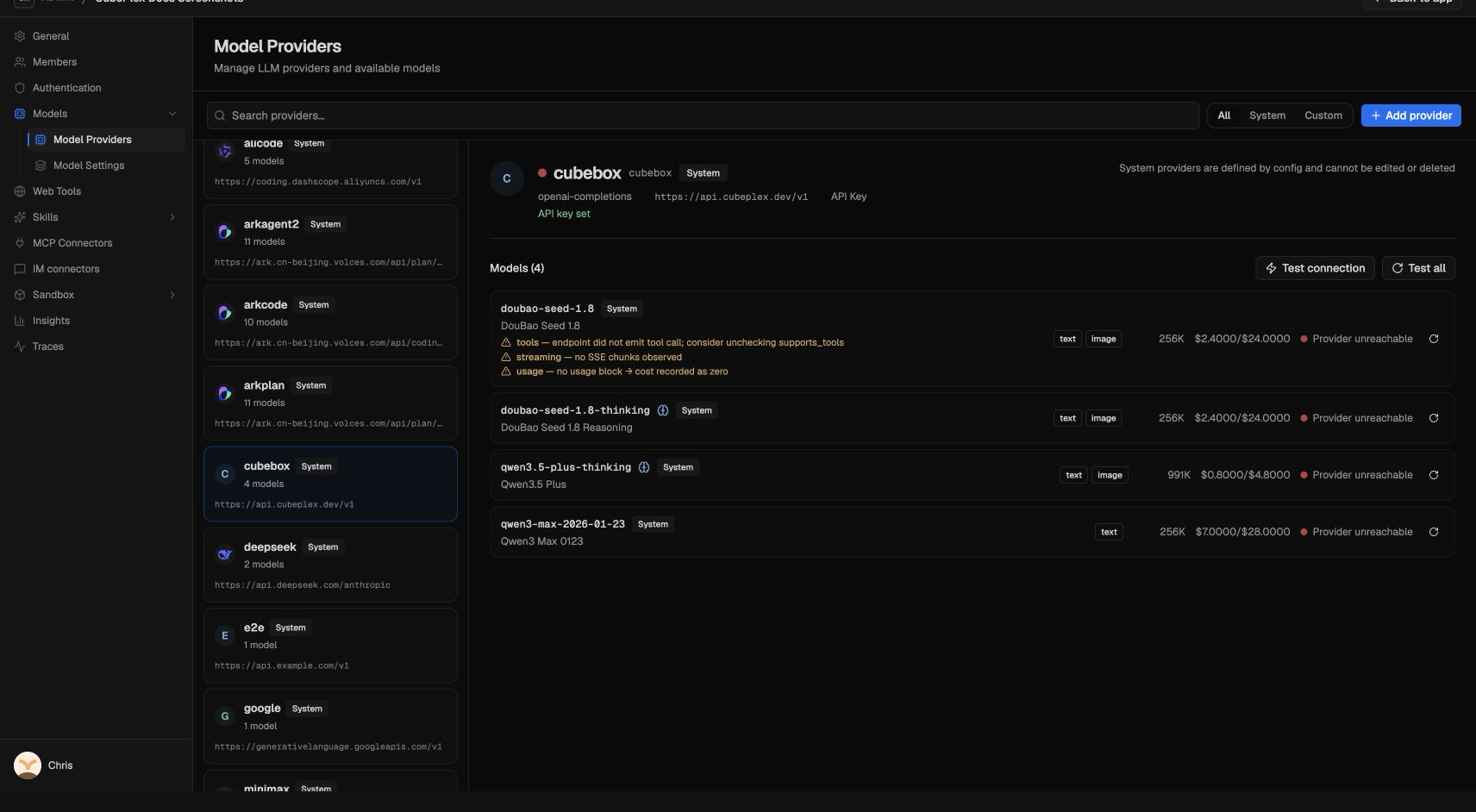
Providers
A provider represents an LLM API endpoint. Each provider has:
- Name and slug — a human-readable label and a URL-safe identifier.
- Base URL — the API endpoint (e.g.,
https://api.anthropic.comfor Anthropic). - Auth credentials — typically an API key.
- Capability descriptor — declares what the provider supports (chat, vision, tool use, etc.).
Add a provider from a preset
CubePlex ships with presets for common providers (Anthropic, OpenAI, and others). Presets pre-fill the base URL, discovery policy, and calling configuration. Supply the calling key, or choose no authentication for a keyless local endpoint.
- Go to Admin > Models.
- Click Add Provider.
- Select a preset from the list (e.g., "Anthropic").
- Review the endpoint and authentication, then click Next.
- Click List available models, review field sources, select models, and import.
- Run verification and click Finish to enable passing models. Vendors with static suggestions use the manual model step.
Add a custom provider
Any service that exposes an OpenAI-compatible chat completions endpoint can be added as a custom provider.
- Go to Admin > Models.
- Click Add Provider.
- Choose Custom (OpenAI-compatible).
- Enter a name, base URL, and API key.
- Review the calling configuration, then click Next to discover models.
- Complete missing fields or resolve conflicts, import the selection, and verify before enabling.
Test provider connectivity
After adding a provider, click Test Connection to verify that CubePlex can reach the endpoint and authenticate. The test sends a lightweight request and reports success or failure with details.
Models
Each provider exposes one or more models. After adding a provider, its available models appear in the model list.
Per-model configuration
You can configure the following for each model:
| Setting | Description |
|---|---|
| Reasoning capability | How CubePlex maps the standard reasoning control (mode, effort, summary) to the provider's wire format. |
| Modalities | Input/output capabilities — text, vision, tool use, etc. |
| Cost rates | Per-token costs — input, output, and (where applicable) cache read / cache write — used for the Cost Tracking dashboard. |
How models reach workspaces
Once a provider is configured and its models are enabled, those models appear in the model picker for every workspace in your organization. Workspace members select a model when starting or continuing a conversation.
Common tasks
Rotate an API key
- Go to Admin > Models and select the provider.
- Update the API key field with the new key.
- Click Save, then Test Connection to confirm the new key works.
Disable a model
If you want to stop offering a specific model to your team, disable it in the model list. Existing conversations that used the model are preserved, but users cannot select it for new messages.
Add a self-hosted or proxy endpoint
Choose CLIProxyAPI, vLLM, or Ollama for those deployments, or a custom provider for another compatible endpoint. The base URL must be reachable from the CubePlex backend server.
Configure reasoning for a custom endpoint
CubePlex stores one standard reasoning control for each conversation:
| Field | Values |
|---|---|
mode | off, auto, or on |
effort | minimal, low, medium, high, or max |
summary | none, auto, detailed, or summarized |
Provider presets for official OpenAI Chat Completions, OpenAI Responses, and Anthropic Messages already translate that standard shape into each API's expected payload. For a custom or proxy endpoint, add a capability descriptor that tells CubePlex which fields to write:
{
  "reasoning": {
    "mode_payloads": {
      "off": { "extra_body": { "thinking": "disabled" } },
      "on": { "extra_body": { "thinking": "enabled" } }
    },
    "effort_path": "reasoning_effort",
    "effort_values": {
      "minimal": "minimal",
      "low": "low",
      "medium": "medium",
      "high": "high",
      "max": "max"
    },
    "apply_effort_when_off": false,
    "unsupported_mode_policy": "skip"
  }
}
Use effort_path: "reasoning.effort" for Responses-style nested payloads, or put provider-specific fields under extra_body for OpenAI-compatible gateways such as LiteLLM. If a model only supports reasoning on/off, omit effort_path and effort_values.
Discover and import models
Choose the vendor first. CLIProxyAPI is available alongside vLLM and Ollama. Enter a base URL reachable from the CubePlex backend and the calling API key (or select no authentication for a keyless endpoint). Next saves the provider. A name or slug that is already in use is reported on this step, before the model list. List available models then reads that saved provider.
Listing interfaces differ by vendor. OpenAI-compatible instances commonly expose GET /v1/models; Anthropic uses its own authentication and cursor pagination, and Ollama uses /api/tags with selected-model details from /api/show. Vendors without a verified adapter offer preset suggestions and manual setup.
Review the returned IDs and their field sources. Select all chat candidates, confirm suggestions you have checked, or apply reviewed context/output limits to a selected group. Unknown fields stay unknown. When the live listing and the catalog disagree, CubePlex uses the listing value; choose the catalog source or type a value to replace it. Other conflicting sources still require a choice or an explicit value. If import reports that required settings are still missing, the message and the model row name those fields. Embedding, audio, and image-generation models cannot be imported as agent chat models. Missing prices are unknown estimates, not free service.
Use Search models or Show selected only to narrow the list. Each row names its missing required fields. Import selected models stays disabled until those fields are resolved; Review selected models opens the selected rows that need attention. Confirmed values and chosen sources update the ready count immediately. Context and output limits must be positive whole numbers, with output no larger than context.
Connection and capability checks allow up to 30 seconds per request for gateway latency. Pending models stay visible while checks run, and failures show the upstream reason or the timeout. Only models that pass their required checks can be enabled.
CLIProxyAPI listings are matched against the models.dev provider snapshot shipped with CubePlex. An exact invocation ID fills context, output limit, input modalities, and reasoning as declared values. When the same ID exists at several providers, CubePlex uses the official Anthropic, OpenAI, Google, or xAI record. A single known suffix such as thinking or high is removed only when the full ID is absent; fast and preview are kept. A price is copied only when it is greater than zero. Models the snapshot does not recognize stay listed with empty limits, and those two numbers can be typed in. Edited values replace the catalog entry. For Ollama, select up to 100 models and use Load selected metadata before reviewing their fields.
Import selected models creates disabled rows in batches of at most 100. Existing IDs are preserved and skipped, including on retry. Discovery previews expire after 10 minutes; rediscover after expiry or a calling-configuration change. Provider creation can be recovered for 24 hours using the same discovery receipt. A deleted provider cannot be recreated by replaying its receipt.
Run model tests, then choose Enable verified model (or finish the wizard to enable passing models). Tests check actual streaming and a completed tool call, plus declared reasoning and image input. A failing required capability leaves the model disabled. Model Settings lists only enabled models.
Editing endpoint, key, limits, or calling capabilities marks old evidence Verification pending. Already enabled models remain usable. A disabled imported model needs a passing test of its current configuration before activation or reactivation. Calls already bound retain their snapshot; new calls and delayed/resumed starts bind current configuration.
For upgrades, apply migrations and record legacy provenance once:
cd backend
uv run alembic upgrade head
uv run python scripts/dev/backfill_model_discovery.py
The backfill is idempotent, preserves enabled rows, and marks old tests historical. It never promotes historical tests to current passes. Legacy zero prices remain unknown until confirmed.
In Edit → Advanced, review each model’s calling configuration separately. Imported models keep their own capability overrides; Use provider configuration removes that override. Forms submit only changed fields with the displayed revision, so concurrent edits require a reload. New image declarations require a vision pass before image attachments are offered, including on an enabled manual model. Its text calls remain available. Reasoning verification uses a small output budget, raised only when needed to fit an explicitly mapped thinking budget and always bounded by the saved output limit.
A current failed reasoning test removes the corresponding explicit controls from the picker and admission checks. Model default and enabled text use remain available. A failure from an older configuration does not certify the new one or restrict its newly reviewed mappings.