Managing Sandboxes
A sandbox is the isolated environment where the agent runs code for a conversation or topic. Each sandbox has its own files and installed packages, and CubePlex keeps it around across container restarts — so the working files from a conversation are still there the next time you open it. While a command is running, its output appears in the chat as it is produced. The Sandboxes tab in your workspace settings is where you see every sandbox that belongs to you in this workspace and take action on one when something goes wrong.
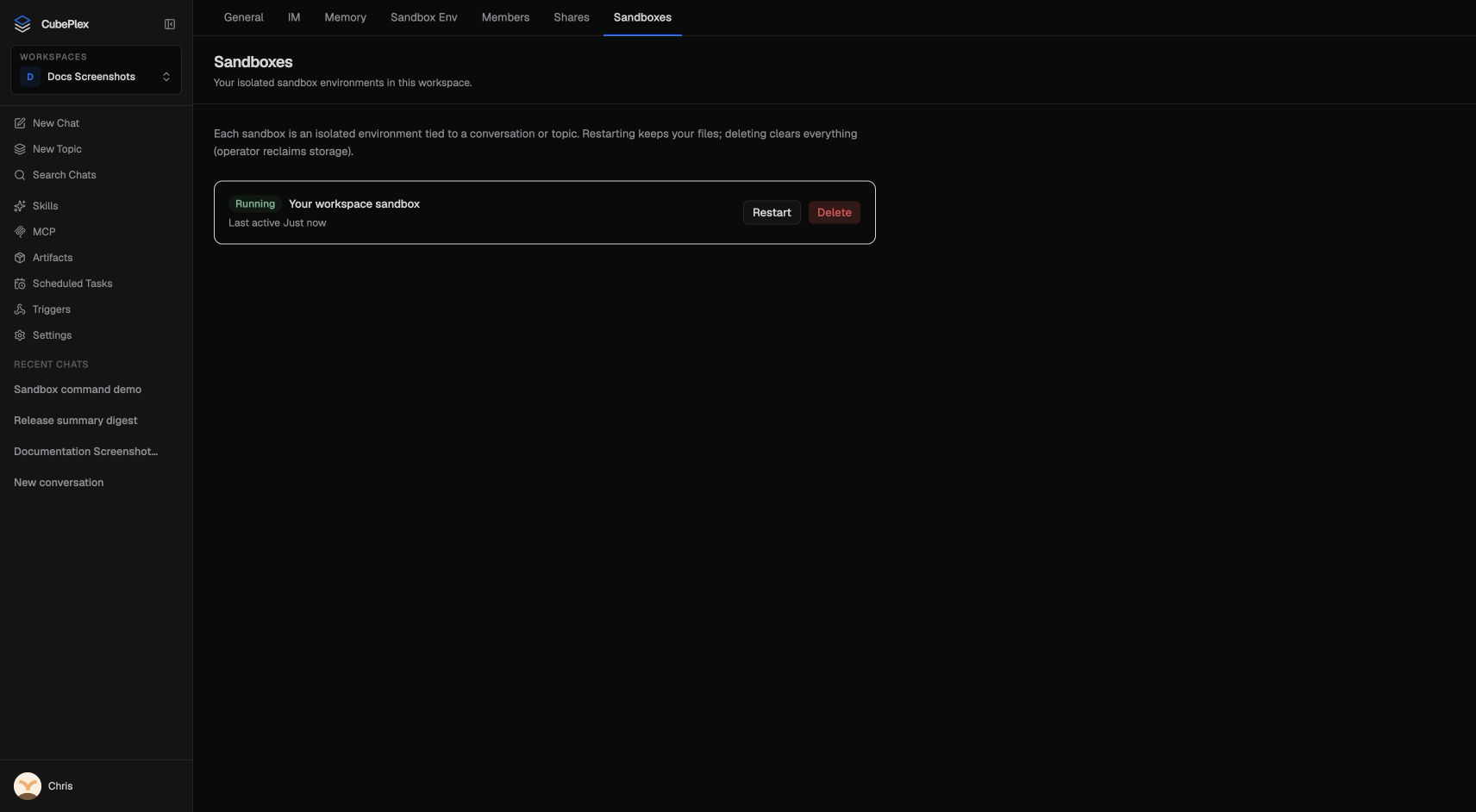
Opening the Sandboxes tab
Go to your workspace and open Settings → Sandboxes. The list shows only sandboxes that belong to you in this workspace. To see every member's sandboxes, an org admin uses the admin-level sandbox observability view instead (see Sandbox administration).
What each row shows
Every active sandbox you own gets one row, regardless of whether its container is currently running:
- Status — a badge showing the sandbox's runtime state (see below).
- Scope label — which conversation or topic the sandbox belongs to:
- Your workspace sandbox — your personal sandbox, used by 1:1 conversations that aren't part of a topic.
- Group chat:
{title}— a standalone group conversation (not in a topic). - Topic:
{title}— a sandbox belonging to a topic. - (deleted) — the conversation or topic that owned this sandbox has been deleted. The sandbox row remains so you can clean it up.
- Last active — when the agent last ran code in it.
- Restart and Delete — the two actions (see below).
A sandbox with status Off (container stopped) still appears in the list. That is intentional: the sandbox's files are still on disk, and it will start back up the next time you send a message in its conversation. You do not need to restart it manually before chatting.
Restart
Restart stops the sandbox's container but keeps the sandbox row and all of its files. The status flips to Off, and the next time the agent needs to run code in that conversation a fresh container starts up on the same storage, with all your files intact.
Use Restart when the container is in a bad state — a hung process, a broken shell, or a runaway command you want to cut short — but you want to keep the working files.
Delete
Delete permanently removes the sandbox. The row is soft-deleted, the container is stopped, and the sandbox will not start again for that conversation or topic. The next time you send a message there, CubePlex provisions a brand-new sandbox with empty storage.
Delete cannot be undone. Stored files are left on disk for your operator to reclaim (CubePlex cannot delete the underlying storage directly). If you only want a fresh container while keeping your files, use Restart instead.
Sandbox statuses
The badge on each row reflects the sandbox's runtime state:
| Badge | Meaning |
|---|---|
| Running | The container is up and ready to execute code. |
| Starting | A container is being provisioned. This is transient — it becomes Running shortly. |
| Paused | The container is paused (idle for a long time). It resumes automatically on next use. |
| Pausing / Resuming | Transitional states while pausing or resuming. |
| Stopping | The container is being stopped after a Restart or Delete action. |
| Off | The container is stopped, but the sandbox row and its files are still around. It starts again on next use. |
| Failed | The last provisioning attempt failed. Use Restart to try again, or Delete to clear it. |
Background commands and recovery
Main-agent commands stream output into the current reply while the agent waits. If a background-capable command is still running after 60 seconds, CubePlex records it as a background task, returns its task and command IDs, and lets the current reply finish. The task then runs independently of that reply. When its final result is ready, CubePlex delivers one internal task event to the conversation. Its raw delivery payload stays out of chat, including while the agent is responding, and does not repeatedly wake the agent.
Subagent execute calls show command progress while waiting for the result or timeout, then return to the main agent. Very long output is shortened in progress updates and the returned result. Subagents cannot use CubePlex background tasks, command monitors, or task completion notices. The main agent can still start background tasks when needed.
The agent can finish other steps while the command runs. If the remaining work depends on its result, the current reply may end with that work still unfinished. The result event brings the agent back to check whether the command succeeded and continue the request. An unfinished checklist item stays unfinished until that follow-up work is done; the end of the current reply does not mark the request complete.
Execute tasks use the configured command deadline, which is one hour by default. Setting notify_on_complete=false suppresses the final conversation event but does not remove that deadline. A command that has exited can still show result_pending while its final log is being recovered.
A monitor waits for one condition and produces at most one final result. Its script keeps checking until the condition is met, then exits with code 0; a nonzero exit reports failure. Output lines are logs, not notifications. A deadline reports timeout once before cleanup; persistent monitors remove that deadline but still report only once. Stopping a monitor does not stop a separate build or service that it observes.
Result delivery is separate from process exit. The shared result state distinguishes pending output, a readable result, and output that is confirmed unavailable. CubePlex advances the provider log cursor only after the corresponding output has been written to the command log. A temporary read or write failure therefore leaves the result pending for recovery; failure to remove an already-written temporary chunk does not make that result unreadable. If a worker stops after writing output but before confirming its cursor, recovery may repeat that final chunk rather than risk silently losing it. Recovery retains the original result event instead of creating another notification; unavailable output is reported as incomplete. Foreground streaming and log collection do not depend on monitor notifications.
Final task results are internal conversation events. They are delivered under the identity that started the task: a result may join that user's active run or start a new run when the conversation is idle, but waits while another participant owns the active run or while a confirmation is pending. An event is marked delivered only after its input is present in the durable checkpoint.
Open Background tasks from the button after Share in the conversation header. Its badge counts unfinished tasks; the right panel shows active tasks and recent completed tasks. Stop task targets one item. Stop all stops the current response and every task in the current execution generation; an old retry cannot stop work created after that request. Accepted stops remain visible as Stopping until the execution provider confirms termination. Completed results also appear as compact rows in the timeline, using the same styling as tool calls. Click a result to inspect its execution record, request, and final output in the right preview panel. On mobile, the preview fills the screen. Details stay out of the conversation timeline, and switching conversations closes the result preview. The delivery label describes the result notification, not whether the command succeeded. Command requests show the shell command separately from execution options, with controls to copy the command or expand and copy the original request JSON. The same request view is available in execute tool details.
Local development limitation
The local subprocess driver is for development only. Its process handles belong to the backend worker that started them; another worker cannot reconnect to them after a restart. An unavailable handle is an unknown process state, not confirmation that the command stopped. Repeated status checks or Stop requests preserve a command's observed exit code, including a command that finished before Stop arrived.
Restart and Delete first block new work on the recorded sandbox instance and request its managed tasks to stop. A successful HTTP response means the request was accepted, not that the provider has confirmed termination. Unconfirmed cleanup remains visible as Stopping and can be retried. Delete hides the sandbox only after reliable provider evidence says the original instance is gone; a replacement instance never inherits the old stop request.
Storage isolation
Each sandbox gets its own isolated storage — files in one sandbox are never visible to another. This holds for the shared sandboxes in topics too: a topic with the Dedicated topic sandbox mode gets a fresh sandbox with its own storage, separate from the creator's personal sandbox and from every other topic. Files from the conversation you upgraded are not carried over into a dedicated topic sandbox.
When sandboxes appear and disappear
- A sandbox row is created the first time the agent runs code in a conversation or topic that doesn't already have one.
- The row stays in the list until you Delete it (or until its owning conversation/topic is deleted and you clean up the orphaned row).
- Stopping, pausing, or restarting a container does not remove the row — only Delete does.
Packages and Python environments
Everything under the sandbox's working directory (/workspace) lives on its persistent storage:
- Installed packages persist. When the agent runs a plain
pip installornpm install -g, the packages land on persistent storage and are still available in later conversations — nothing gets reinstalled on every chat. - Isolated environments work normally. If a project or skill needs its own Python environment (a conflicting dependency set, a different Python version), the agent can create one with
python -m venvoruv. Environments created under the working directory survive restarts and recreation like any other file. - Everything outside the working directory is temporary. System locations (
/tmp,/opt, …) are reset when the sandbox is recreated. - Commands run as the non-root
cubeplexuser (uid 1000), not as root. Prefer installs that write under/workspace(the default pip/npm overlays already do). System-wide package managers that need root (for exampleapt-get) will fail unless an operator has arranged elevated access.
How the agent organizes files
The sandbox working directory is long-lived — files stay across conversations, like a second computer. To keep it browsable, the agent follows a standard layout:
projects/<name>/— one folder per deliverable or ongoing effort, named after its content (e.g.sales-report-2026q2), not per conversation. Later sessions on the same work continue in the same folder.WORKSPACE.md— an index at the root, one line per project. Skim it to see what's in the sandbox.tmp/— scratch space for throwaway files; contents may be cleared at any time.uploads/— files you attach in chat land here; the agent copies a file into a project folder when it becomes part of the work.
The agent will not silently overwrite an existing file (replacing one has to be an explicit decision), and it will not reorganize or delete your existing files unless you ask.
Tips
- Restart before Delete. If a sandbox is misbehaving but you want to keep its files, Restart it. Reach for Delete only when you genuinely want a clean slate.
- Clean up orphaned rows. If a row shows (deleted) as its scope, the conversation or topic that owned it is gone. Delete the row to stop paying for an idle container.
- You can only manage your own. Each member sees only their own sandboxes. To audit sandbox usage across the workspace, an org admin uses the admin observability view (see Sandbox administration).