Conversation Basics
Conversations are where you interact with the AI agent. Each conversation is a persistent message thread scoped to your workspace, with full context carried across turns.
While a conversation is visible, CubePlex periodically checks for new messages and background results. When nothing has changed, it skips downloading the history again and keeps your reading position and expanded message cards. Checks pause while the tab is hidden and resume when you return.
Starting a conversation
When you open a workspace, you land on the home page with an empty input bar. Type a message and press Enter (or click the send button) to start a new conversation. CubePlex creates the conversation automatically and routes you to it.
You can also click New Chat in the sidebar to start fresh at any time.
The conversation interface
The layout has three main areas:
- Sidebar (left) — lists your recent conversations, workspace navigation (skills, tools, memory, settings), and workspace switcher.
- Chat area (center) — the message thread and input bar.
- Side panel (right, opens on demand) — previews artifacts, attachment images, tool call details, or the sandbox browser. When the agent uses the browser skill, this panel opens on the Browser tab by itself and the live view follows the tab the agent is operating on. You can still take over at any time, or close the panel if you do not want to watch.
When the agent starts a write call, its tool row appears before the file content has finished generating. If the side panel is available, the file preview opens immediately and updates as the content arrives. The preview shows content being generated; the file is saved when the tool successfully executes.
If several files are being written at once, each tool row tracks its own content. The file already open in the preview stays selected as other calls update or finish. Click another write row to follow that file; later updates from other calls will not switch your selection.
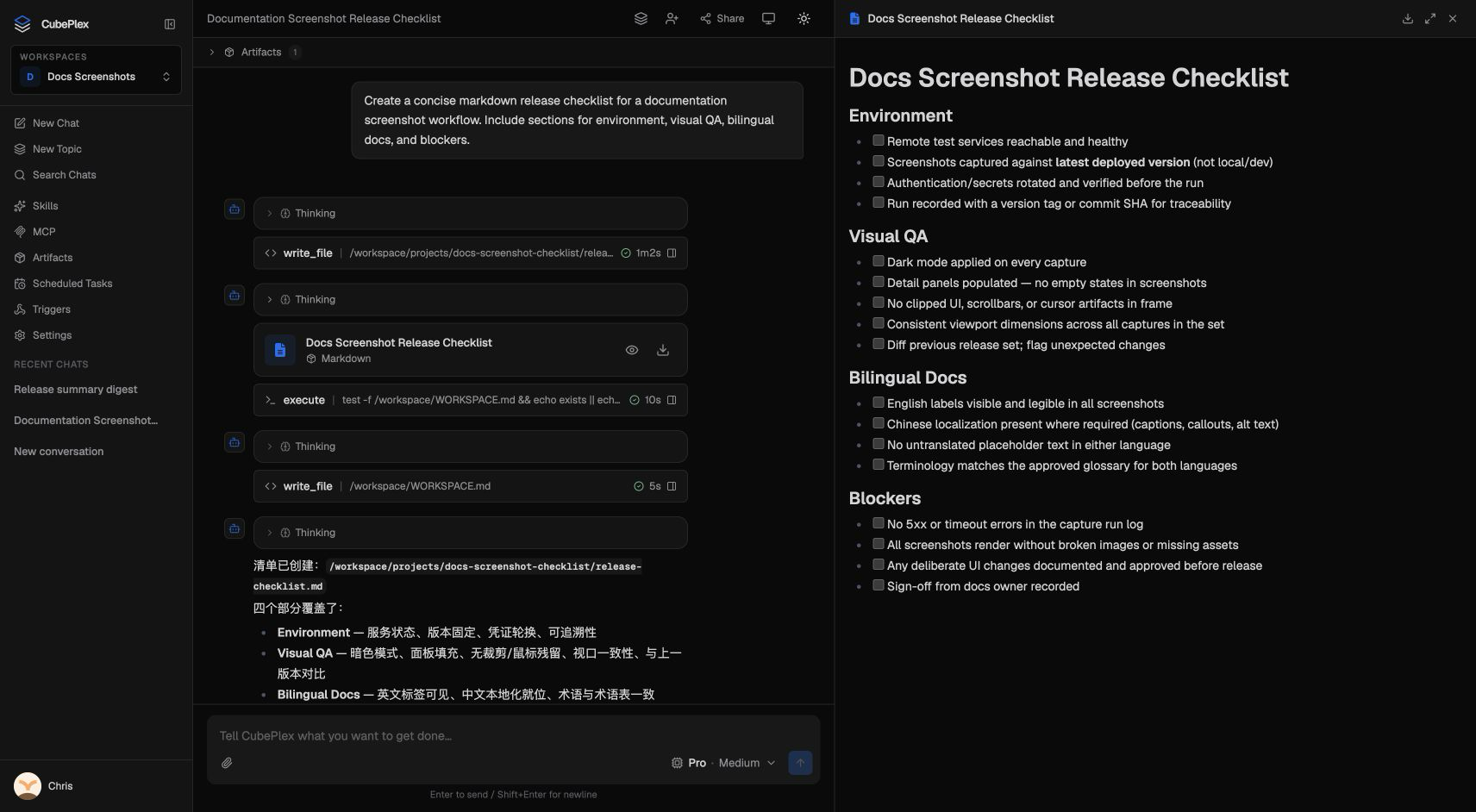
The input bar sits at the bottom. It includes:
- Model preset picker — choose which model to use for this message.
- Thinking control — set the reasoning depth (Off, Low, Medium, High, Max).
- Attach button (paperclip icon) — add files to your message.
- Text area — type your message. Press Enter to send, Shift+Enter for a new line.
- Send / Stop button — sends the message, or stops a running response.
Slash commands
Type / at the start of the composer (the whole draft is just the command
token) to open a filterable command palette. Keep typing to filter — commands
whose name (or alias) starts with what you typed appear first, ahead of weaker
keyword matches. Use ↑/↓ to highlight, Enter or Tab to run, Esc to
dismiss. Client commands never create a user message bubble for the slash text.
| Command | What it does |
|---|---|
/help | List available commands in the palette |
/new | Start a new chat (same as sidebar New Chat) |
/stop | Cancel the in-flight run (only while streaming) |
/model | Open the model / effort picker |
/effort | Open thinking / effort control |
/rename | Rename the current conversation in the sidebar |
/share | Open the share panel |
/attach | Open the file attachment picker |
/skills | Open workspace skills |
/mcp | Open workspace MCP connectors |
/compact | Force-compact older context for this conversation (idle only) |
/compact does not post a chat bubble with the text /compact. When
compaction succeeds, the timeline shows a centered Context compacted marker
(and a short toast). That marker is stored in conversation history so it
remains visible after reload — it is not a user message.
Unknown text like /zzzzz with no match sends as a normal message (or steers
while streaming). Type a space after / to write a literal leading slash.
What the agent can do
During a conversation, the agent can:
- Respond with text — standard conversational replies with markdown formatting.
- Think — show its reasoning process in a collapsible "thinking" block (when thinking is enabled).
- Call tools — invoke MCP connectors to reach external services (databases, APIs, SaaS products).
- Execute code — run commands in a sandboxed environment.
- Generate artifacts — produce downloadable files, live website previews, images, data files, and more. See Artifacts.
- Save memories — store facts, preferences, or decisions for future conversations. See Memory overview.
Per-message actions
Hover a completed assistant reply to reveal small action chips under the bubble:
- Copy — copy that turn's text reply.
- Token usage — the last LLM call's input/output/cache stats (session totals on the latest turn).
- Info — this turn's status and Run ID. A finished turn stays a quiet Info chip with the id (useful for
cubeloop traceor Admin → Traces). If you stopped the reply, the network dropped, the model failed, or the previous run was cut off, the chip stays visible with a short label. Open it for the reason, raw error (when there is one), and a copyable run id. - Fork — start a new conversation that continues from this turn.
- Timestamp — relative time; hover for the absolute time.
Steering and stopping
While the agent is responding, you can:
- Stop the response — click the stop button (square icon) to cancel the current response. That is not a failure: the chip under the turn says Stopped, and any text already generated stays. The composer stays locked until the previous run has fully stopped.
If the browser disconnects mid-reply, the run keeps going on the server. The chip says Reconnecting… or Connection lost (with Retry) instead of treating it as a failed reply. Reconnect resumes the same turn; you can still press Stop.
- Steer mid-stream — type a message while the agent is still responding and press Enter. This sends a "steer" instruction that redirects the agent without waiting for it to finish.
When the agent needs your input (for example, a confirmation before proceeding), you can keep typing in the input bar. Text sent while the prompt card is waiting is queued as guidance for the same run; it does not answer the card. The agent receives that guidance after you answer, approve, deny, or cancel the card. Queued guidance survives a refresh and can be cancelled before the agent uses it.
Attachments remain unavailable while a run is active, including while an input or confirmation card is waiting. If you hard-stop a run, the composer shows cancellation progress and stays locked until the previous run has fully stopped.
Pressing the main Stop button while a question or confirmation is waiting cancels that paused run without another model response. It clears the waiting card and cancels guidance that has not reached the conversation history; input already recorded in history stays there. This differs from answering or denying a confirmation, which can let the agent continue. A successful Stop request means cleanup was accepted; the composer waits for the server to confirm it is idle.
Stopping the current response and stopping background work are separate actions. The main Stop button targets only the response whose Run ID is shown in the conversation. Work that was already handed to the background continues. Open Background tasks from the button after Share in the conversation header; its badge counts unfinished tasks, and the right panel shows active and recent completed tasks. Expand View tool call and output on a task to inspect its original tool arguments and response, saved command, exit code, and execution output. Output loads when you expand the task and refreshes while it is running. If the original message is outside the loaded history, the saved command remains available. Use Stop task for one item, or Stop all when you intend to stop the current response and all background work that belongs to the conversation.
A successful Stop request means CubePlex durably accepted it; remote cleanup may still be in progress. The UI keeps showing Stopping until the execution provider confirms the result. Stop requests carry the run ID or conversation execution generation, so retrying an old request cannot stop work that started later.
Background results appear as compact system events in the timeline, separate from messages you send while steering a response. A task or monitor produces at most one final event: success, failure, cancellation, or timeout. Expand a result event to inspect the same task details and output, including calls made by subagents. Output comes from the original task sandbox, even if the conversation later changes its sandbox scope. Completed logs remain readable from that sandbox's persistent storage after its container is restarted or reaped. Logs above the preview limit have a download link. If the backend marks output unavailable, the details show the reason; temporary read failures offer retry. See Sandboxes for command deadlines and recovery behavior.
Managing conversations
Right-click (or click the three-dot menu) on any conversation in the sidebar to access these actions:
- Rename — give the conversation a descriptive title. By default, CubePlex auto-generates a title from your first message.
- Pin — pinned conversations stick to the top of the sidebar list so you can find them quickly.
- Unpin — remove a conversation from the pinned section.
- Delete — asks for confirmation, then soft-deletes the conversation and stops its active responses and background work. It leaves the sidebar immediately; if process cleanup is still running, CubePlex shows a one-time notice that the background work is still stopping. Messages are no longer available in that conversation; related artifacts leave the library and conversation surfaces. Rows and stored files are retained for integrity, cost audit, and future cleanup — not hard-wiped. There is no user-facing restore. Existing share links are not revoked by delete.
Auto-generated titles
When you send the first message in a conversation, CubePlex uses the LLM to generate a short title summarizing the topic. If you prefer a custom title, rename the conversation from the sidebar menu.
Using prior work
The agent can search conversations in your current workspace and review artifacts that are visible to you. By default, it reads a small window of recent turns from a conversation so it can quickly understand the relevant context. When needed, it can retrieve detailed historical tool output for a specific result.
This access is read-only: the agent cannot delete artifacts through it.
Tips
- Use pinning for active projects. Pin conversations you return to frequently so they stay visible regardless of how many new chats you start.
- One topic per conversation. The agent uses the full conversation history as context. Mixing unrelated topics in one thread dilutes that context and may produce less relevant responses.
- Steer instead of stopping. If the agent is heading in the wrong direction, steer it with a follow-up message rather than stopping and restarting. This preserves the context the agent has already built up.
- Check the thinking block. When reasoning is enabled, expand the thinking block to understand how the agent arrived at its answer. This is especially useful for complex tasks.