Slack setup
Slack runs over Socket Mode — CubePlex opens a persistent outbound socket to Slack and receives events over it, so nothing on your CubePlex host needs to be reachable from the internet. This guide walks you through creating the Slack app, enabling Socket Mode, granting the bot the scopes and event subscriptions the connector needs, installing the app to your Slack workspace, and binding it to your CubePlex workspace.
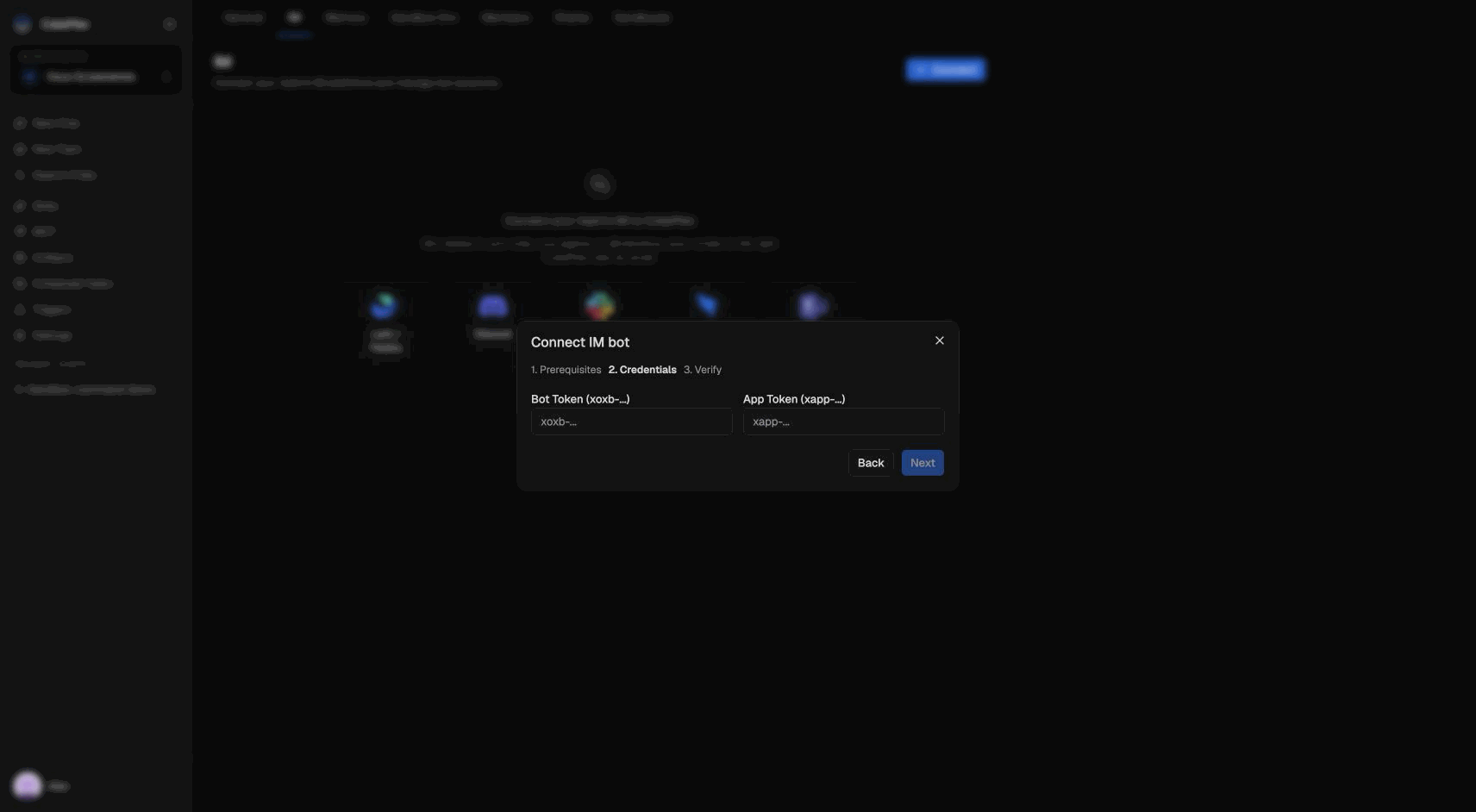
Binding takes two tokens: a bot token (xoxb-…) and an app-level token (xapp-…). The bot token authenticates API calls; the app-level token opens the Socket Mode connection.
Before you start
You need:
- A workspace admin or member account in CubePlex (a plain member can bind a bot that runs as themselves; impersonating another user requires the workspace admin role).
- Permission to create and install a Slack app in your Slack workspace (workspace owners/admins, or a workspace that allows member app installs).
Step 1 — Create a Slack app
Go to the Slack API apps page and create a new app from scratch. Give it a name and pick the Slack workspace you want to install it into.
Capture: The "Create an app" dialog with "From scratch" selected, showing the app-name field and the target-workspace picker.
Asset: /img/im/slack-create-app.png
Step 2 — Enable Socket Mode
In the app settings, open Socket Mode and turn it on. Socket Mode is what lets CubePlex receive events over an outbound socket instead of a public webhook URL — it is the only delivery mode the Slack connector supports.
Capture: The Socket Mode settings page with the "Enable Socket Mode" toggle switched on.
Asset: /img/im/slack-socket-mode.png
Step 3 — Generate the app-level token
Enabling Socket Mode prompts you to create an app-level token. Generate one (Slack calls this an "App-Level Token") and grant it the connections scope that Socket Mode requires. Copy the token — it starts with xapp-. You'll paste it into CubePlex in Step 7.
App-level tokens are shown once. If you lose it, generate a new one — you can't reveal an existing token after leaving the page.
Capture: The app-level token generation dialog with the connections scope attached, showing the generated xapp-… token.
Asset: /img/im/slack-app-token.png
Step 4 — Add bot token scopes
Open OAuth & Permissions and add the Bot Token Scopes the connector needs. The bot must be able to:
- Read messages where it's mentioned and read direct messages sent to it.
- Post and edit messages in channels and DMs (replies stream in as live-updating messages).
- Add and remove emoji reactions (the bot reacts to acknowledge a message it's working on).
- Look up a user's profile to read their email — this is how CubePlex auto-resolves a sender's CubePlex identity without a manual
/link(see Step 8).
The capabilities above are confirmed from the connector code (it calls auth.test, users.info, chat.postMessage, chat.update, and the reactions API, and listens for app_mention + message events). The exact Slack scope names that grant each capability are defined by Slack, not CubePlex, and Slack occasionally renames or splits them — add the scopes Slack's OAuth & Permissions page lists for "read mentions," "read DMs," "post/edit messages," "manage reactions," and "read user email," and verify against Slack's current scope reference rather than copying a fixed list here.
Capture: The OAuth & Permissions → Bot Token Scopes section with the message-read, message-write, reactions, and read-email scopes added.
Asset: /img/im/slack-bot-scopes.png
Step 5 — Subscribe to message events
Open Event Subscriptions and turn it on (with Socket Mode enabled, Slack delivers these events over the socket — no Request URL is needed). Under Subscribe to bot events, add the two events the connector listens for:
app_mention— fires when the bot is @-mentioned in a channel.message.im— fires on direct messages to the bot.
Without these subscriptions the bot never sees any messages. After adding events, Slack will prompt you to reinstall the app (Step 6) so the new scopes and subscriptions take effect.
In topic routing mode, each Slack thread that @-mentions the bot becomes a CubePlex topic. Slack does not supply a channel display name on these events, so CubePlex titles the topic from the first user message (you can rename it later from the sidebar ⋮ menu).
Capture: The Event Subscriptions page with "Subscribe to bot events" expanded, showing app_mention and message.im added.
Asset: /img/im/slack-event-subscriptions.png
Step 6 — Install the app and grab the bot token
Back on OAuth & Permissions (or Install App), click Install to Workspace and approve the requested scopes. After installing, Slack shows the Bot User OAuth Token — it starts with xoxb-. Copy it; this is the bot token you'll paste into CubePlex.
If you change scopes or event subscriptions later, reinstall the app so the changes take effect, and grab the bot token again if Slack rotates it.
Capture: The Install App / OAuth & Permissions page after install, showing the "Bot User OAuth Token" (xoxb-…) and the copy button.
Asset: /img/im/slack-install-token.png
Step 7 — Bind the bot in CubePlex
In your CubePlex workspace, open the IM connectors settings and connect a new Slack account. Provide:
| Field | Required | Notes |
|---|---|---|
| Bot token | Yes | The xoxb-… token from Step 6. CubePlex uses it to call Slack and to read the bot's identity. |
| App-level token | Yes | The xapp-… token from Step 3. Opens the Socket Mode connection. |
| Run identity | Yes | self (the bot runs as you) by default. Binding it to run as another user requires the workspace admin role. |
On binding, CubePlex validates the bot token against Slack (auth.test) and reads the bot's identity and the Slack team it belongs to; the Slack team ID becomes the account's external identifier, so you can only bind one CubePlex account per Slack team. Both tokens are stored encrypted. If the bot token is invalid, binding fails — fix it in the Slack console and retry. Delivery mode is fixed to gateway (Socket Mode); there is no webhook option for Slack.
Step 8 — Link your identity
Add the bot to a channel (or DM it directly) and @-mention it. The first time, CubePlex needs to know which CubePlex user you are:
-
If you granted the read-email scope (Step 4), CubePlex resolves your Slack email via
users.infoand — if that email matches a CubePlex account in this workspace — runs your message immediately, no manual linking needed. -
Otherwise (no email scope, or your Slack email doesn't match a CubePlex account), link manually. Run the
/linkslash command:/link your-cubeplex-email@example.comThe bot replies (privately, only you see it) with a confirmation URL of the form
https://<your-cubeplex-host>/im-link?token=…. Open it while logged in to CubePlex and confirm. The email must belong to an existing CubePlex account that is already a member of this workspace — linking connects an existing account, it doesn't create one or grant membership. See Identity linking.
Once linked (or auto-resolved), the bot replies in-channel and edits its message in place as the agent streams its response.
Conversation commands
CubePlex handles /link, /new, and /reset as native Slack slash commands when you create them on the Slack app. Plain-text forms work too (and are required inside threads — see below).
Register slash commands in the Slack app
In the Slack app settings open Slash Commands and create each command you want to use:
| Command | Short description (example) | Usage hint |
|---|---|---|
/link | Link Slack identity to CubePlex | you@example.com |
/new | Start a fresh CubePlex conversation | (empty) |
/reset | Same as /new | (empty) |
With Socket Mode enabled you do not need a working public Request URL — events arrive over the socket. Slack may still require a placeholder URL when creating the command.
- If the bot already has the
commandsscope, creating slash commands does not require reinstall. - If you add the
commandsscope (or other scopes) for the first time, reinstall the app and update the bot token in CubePlex if it changed.
Command reference
| Command | Effect |
|---|---|
/link <email> | Link your Slack identity to your CubePlex account (see Step 8). Replies privately (ephemeral). |
/new | Start a fresh conversation; your next message begins a new one. Replies privately for the slash form. |
/reset | Same as /new. |
Slash commands do not work in threads
This is a Slack platform limit, not a CubePlex bug: developer-created slash commands cannot be invoked inside message threads. Only Slack built-ins (and a few special apps such as Giphy) work in threads. In a thread you will typically see “/link is not supported in threads”.
| Context | Slash form (/link, /new, …) | Text form |
|---|---|---|
| Channel main timeline | ✅ | ✅ — @bot /new or @bot 新对话 |
| DM with the bot | ✅ | ✅ — link you@example.com (no leading / also works) |
| Inside a thread | ❌ | ✅ — @bot /new, @bot 新对话, or keep chatting with @bot … |
Tips for threads
- Keep talking with
@bot …(same Slack thread stays one CubePlex conversation). - To reset in a thread:
@bot /newor@bot 新对话as a normal message (not the slash-command picker). - Prefer DM or the channel main timeline for
/link.
Plain-text link you@example.com (without a leading /) is useful when Slack intercepts bare /link as an unknown command because the slash command was never registered.
Rotating credentials
There is no in-place secret edit. To rotate the bot token or app-level token, delete the Slack account in CubePlex and bind it again with the new values. If you regenerate the app-level token or reinstall the app in Slack (which can rotate the bot token), update CubePlex by re-binding.