Managing Skills
Once skills are installed, you can manage them from the workspace settings or the Skills marketplace page. This guide covers the day-to-day operations: enabling, disabling, updating, uploading custom skills, and understanding how org-wide and workspace-private installs interact.
Viewing your workspace skills
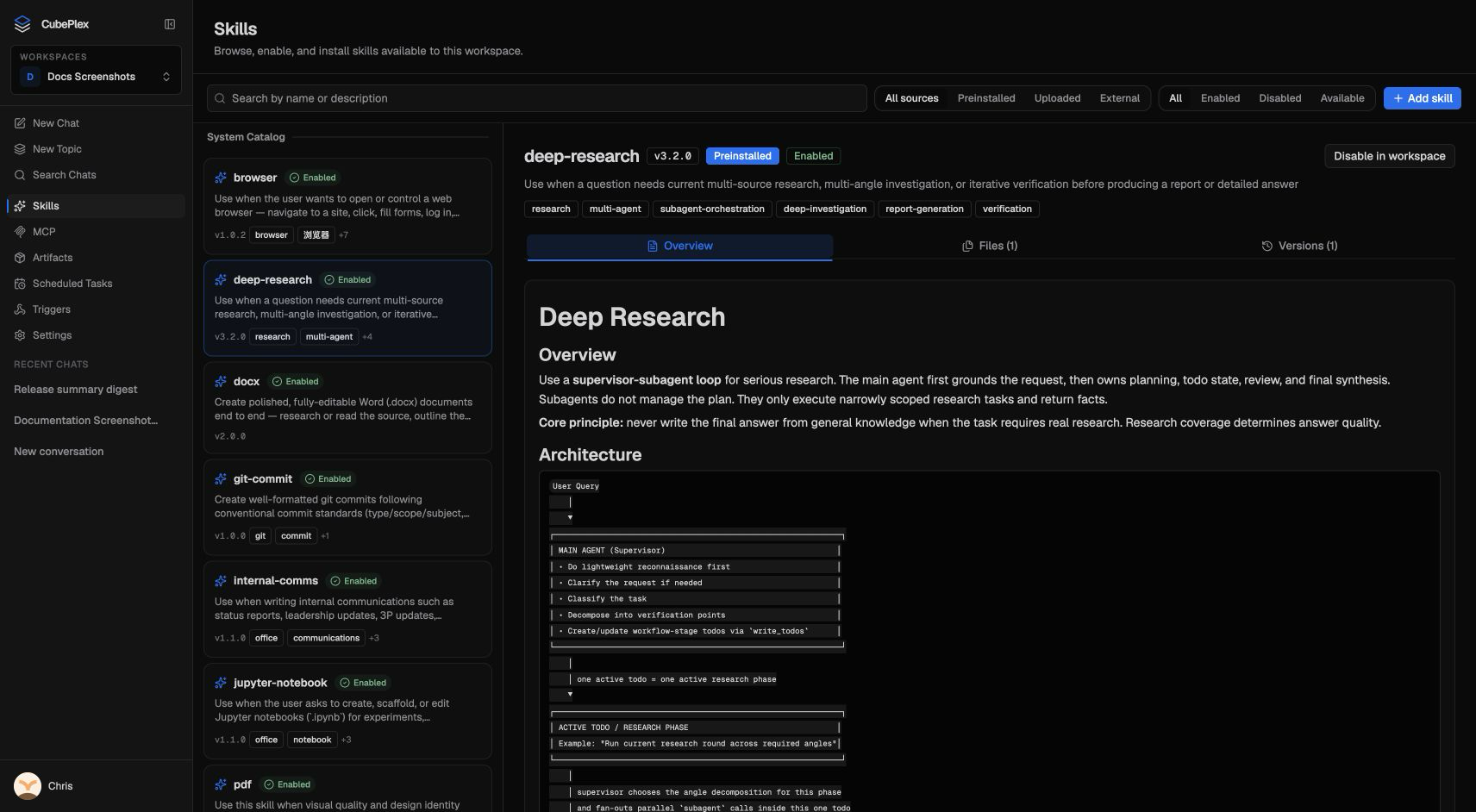
Open the Skills page from the workspace sidebar to see every skill available in your workspace. Each skill card shows:
- Name and short description. Uploaded skills are stored as
org-slug:skill-slugfor uniqueness, but the card shows only the short skill slug. Hover the name or open the detail panel to see the full canonical name (which is what agents pass toload_skill). - Source — whether the skill is built-in (preinstalled) or uploaded.
- Version — the currently installed version.
- State — whether the skill is enabled, disabled, or available but not yet installed. Workspace-private skills show both Private and Enabled because they are always enabled.
You can filter the list by source (preinstalled / uploaded), by state (enabled / disabled / available), or by a text search.
Skill states
A skill in your workspace can be in one of four states:
| State | Meaning |
|---|---|
| Org-enabled | Installed org-wide by an admin and enabled for this workspace. The agent can use it. |
| Org-disabled | Installed org-wide but toggled off for this workspace. The agent cannot use it until an admin or workspace owner enables it. |
| Workspace-private | Installed directly into this workspace (not org-wide). Always enabled. |
| Available | Visible in the catalog but not installed in this workspace. You can install it from the detail panel. |
Enabling and disabling skills
For org-wide skills, a workspace owner or admin can toggle individual skills on or off for the workspace. Disabling a skill does not uninstall it — it just hides it from the agent in that workspace. Re-enable it at any time from the same panel.
Workspace-private skills are always enabled. To stop using one, uninstall it (see below).
Uploading custom skills
You can upload a skill directly to your workspace:
- On the workspace Skills page, click the Add button (or the upload action in the toolbar).
- Select a
.zipfile containing your skill. The zip must include aSKILL.mdat the root with valid frontmatter (name, version, description). - CubePlex validates the bundle and publishes it. The skill appears immediately in your workspace.
Custom skills uploaded at the workspace level are workspace-private. To make a skill available org-wide, ask your org admin to upload it from the admin panel (Admin > Skills).
Skill file requirements
- The zip must contain a
SKILL.mdfile at the root. SKILL.mdfrontmatter must includename,version, anddescription.- Each file in the bundle may be at most 10 MB, and the whole bundle at most 50 MB.
- The skill name must be unique within your organization's catalog.
Updating skills
Updates have two steps when the skill came from a remote registry:
- Check for update (workspace-private skills only) re-fetches the remote bundle into the org catalog. Your workspace install pin does not move yet.
- When the catalog is ahead of your install, the skill shows update available. For workspace-private skills, click Upgrade to v… to move your pin. For org-wide skills, only an org admin can upgrade the org install from Admin > Skills.
If the skill was uploaded as a zip (not from a registry), there is no Check for update — a new version appears after someone uploads a newer package.
The agent keeps using the installed version until an upgrade completes; later conversations pick up the new pin.
Uninstalling skills
To remove a skill from your workspace, open its detail panel and use the uninstall action. This removes the workspace binding but does not delete the skill from the org catalog — other workspaces that use the same skill are unaffected.
A skill uploaded or installed in a workspace is also registered on the org catalog. Removing the workspace install leaves that catalog row behind. An org admin can delete it from Admin > Skills with Delete from catalog.
For org-wide skills, only an admin can fully uninstall them. See Administration > Skills Management for details.
Built-in skills have special handling: if an admin uninstalls a preinstalled skill for the org, CubePlex records that decision so the skill is not automatically restored on the next system update.
How skills reach the agent
When a conversation starts, CubePlex assembles the list of skills the agent can see:
- All org-wide installed skills that are enabled for the workspace.
- All workspace-private installed skills.
- Built-in skills that have not been uninstalled by the admin.
The agent receives this list as part of its system context. When a skill is relevant to your request, the agent calls load_skill(name) to read its full instructions and begins following them. You can also explicitly ask the agent to load a specific skill by name.
Tips
- Start with built-in skills. They cover common tasks and require no setup.
- Use workspace-private installs for experimentation. Try a skill in one workspace before asking your admin to roll it out org-wide.
- Check the trust tier before installing skills from remote registries. Official skills are vetted; community and unvetted skills should be reviewed first.
- Describe your goal, not the skill. The agent is better at matching your intent to available skills than you are at guessing skill names.